.png)
.png)

How to Find Your Bridge API Key

Sep 22, 2026
6

How to Find Your Bridge API Key
Use https://insights.headset.io/app/settings/api-keys or follow the step by step instructions below.
- Log in to your account.
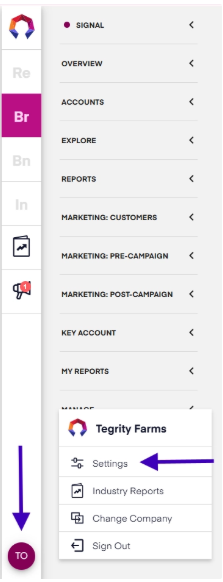
- Open the account menu by clicking your initials in the bottom-left corner of the page. Then select Settings
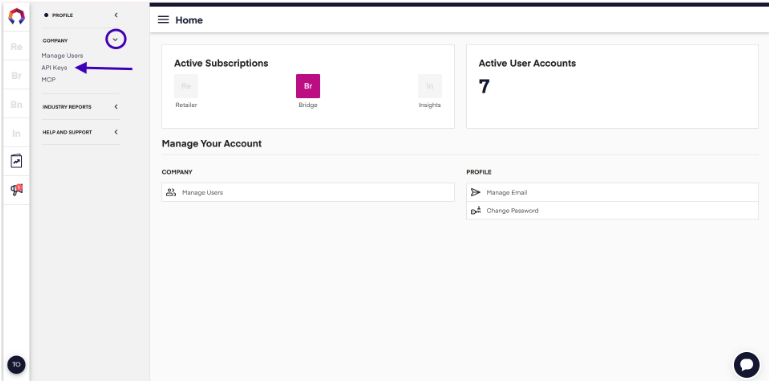
3. From the left-hand navigation, open the Company section and select API Keys
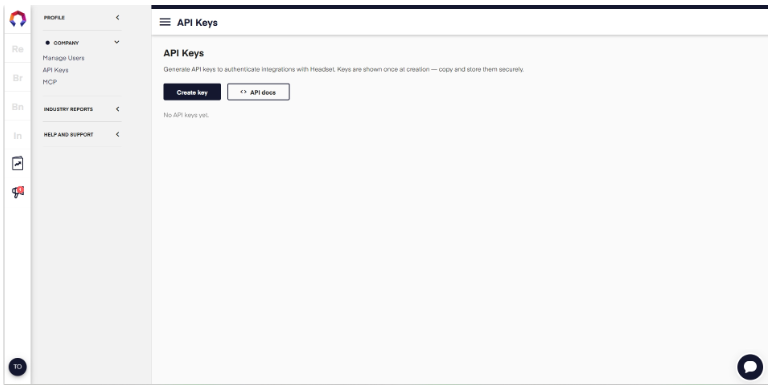
From the API Key page:
- Create Key: to generate a new API key.
- API Docs: view additional information about using the Bridge API.
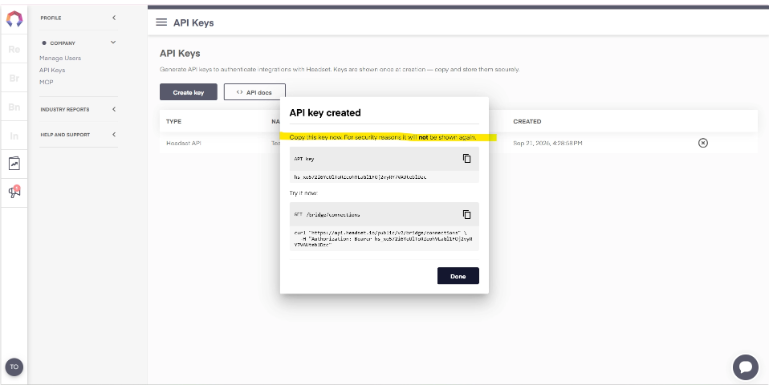
Once completed you will be presented with your Bridge API Key. As noted you will need to copy the key from the pop up. Your API key will not be displayed after you close the window.
Keep your API key secure: Treat your API key like a password. Only share it with trusted systems or team members who need it to access the API.
Bridge API Documentation
For complete reference documentation, including every available endpoint and response shape, visit the Bridge API documentation.


